Category: Systeme.io

Posts on using System.io.

  • How to add a countdown timer in Systeme.io

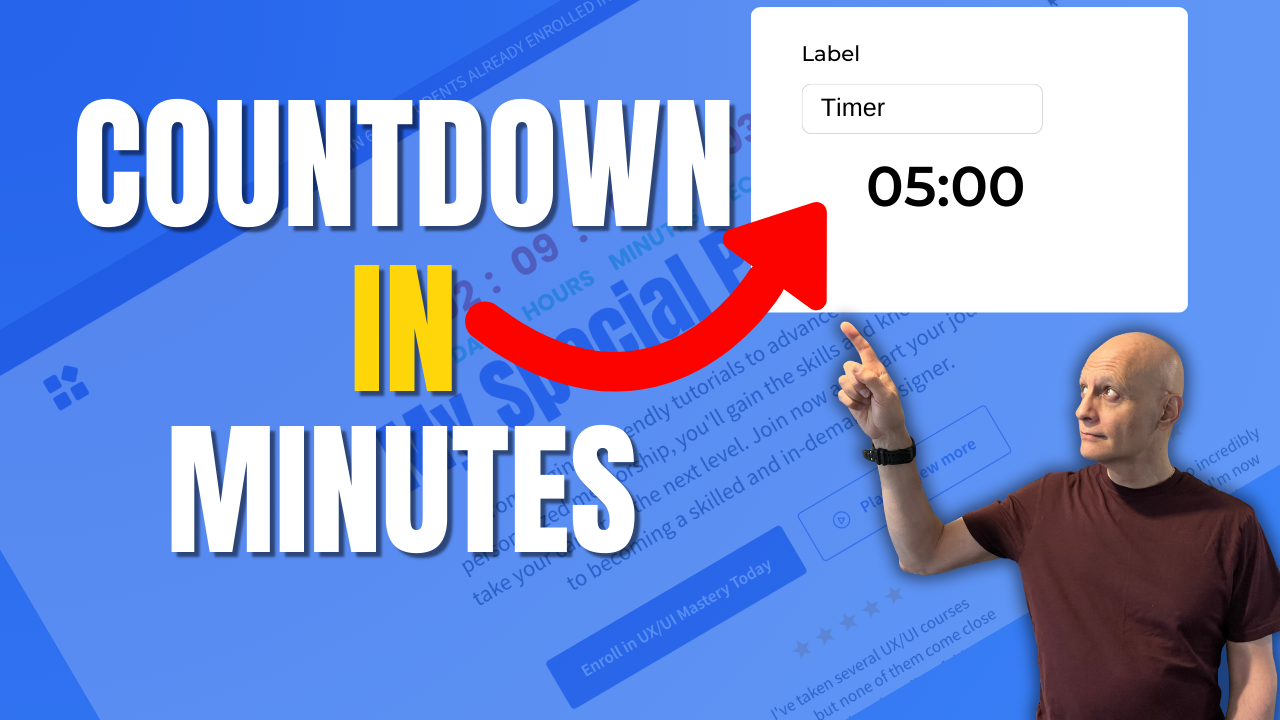
    How to add a countdown timer in Systeme.io

    This step-by-step tutorial covers using the built-in Countdown element — whether you need a fixed date/time, a delay timer, or a daily reset timer. Perfect for promos, limited-time offers, or evergreen funnels.
    What you’ll learn:

    ✅ How to drag and drop the “Countdown” element in Systeme.io page builder
    ✅ Configuring fixed date & time, delay countdown, or daily countdown types
    ✅ What happens when the timer expires (redirect or nothing)
    Best use cases for each timer type

    ✅ Free resource
    📌 Beginner Funnel Checklist / Freebie:
    🔗https://www.pagebuilderacademy.com/starter

    Get a FREE Systeme.io account below:
    🔗https://www.pagebuilderacademy.com/systeme

    See my full Systeme.io review + bonuses:
    🔗https://www.pagebuilderacademy.com/2r8b

    Timestamps:

    0:00 – Intro
    0:33 – Navigating to Sales Funnels
    0:49 – Select Required Funnel
    1:03 – Go into Page Editor
    1:23 – Add and place the countdown timer
    1:41 – Configuring the countdown timer
    2:04 – Fixed Date & Time
    2:42 – Delay Timer option
    3:09 – Daily Timer
    3:39 – Saving and previewing the timer
    4:00 – Configuring further options for the timer
    4:50 – Outro

    #systemeio #systemeiotutorial #pagebuilder #funnelbuilder #onlinemarketingtips #emailmarketing #PageBuilderAcademy #countdowntimer

    ========================
    QUESTIONS? CONTACT ME!
    ========================

    EMAIL: zaf@pagebuilderacademey.com

    ===========
    FOLLOW ME
    ===========

    ▶ YOUTUBE SUBSCRIBE – @PageBuilderAcademy

    ============
    DISCLAIMER
    ============
    Some of the links in this description may be affiliate links, which means I receive a small commission at NO ADDITIONAL cost to you if you decide to purchase something.
  • Systeme.io Tags: The Automation Trick Most Miss

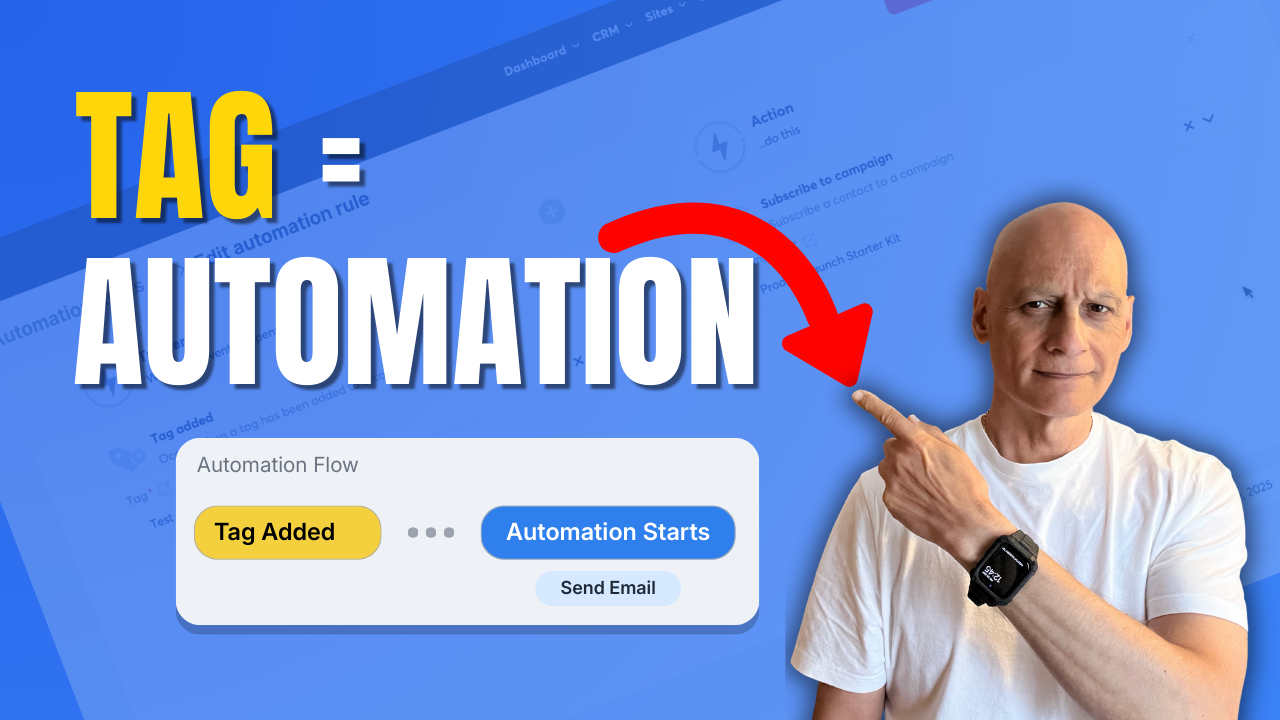
    Systeme.io Tags: The Automation Trick Most Miss

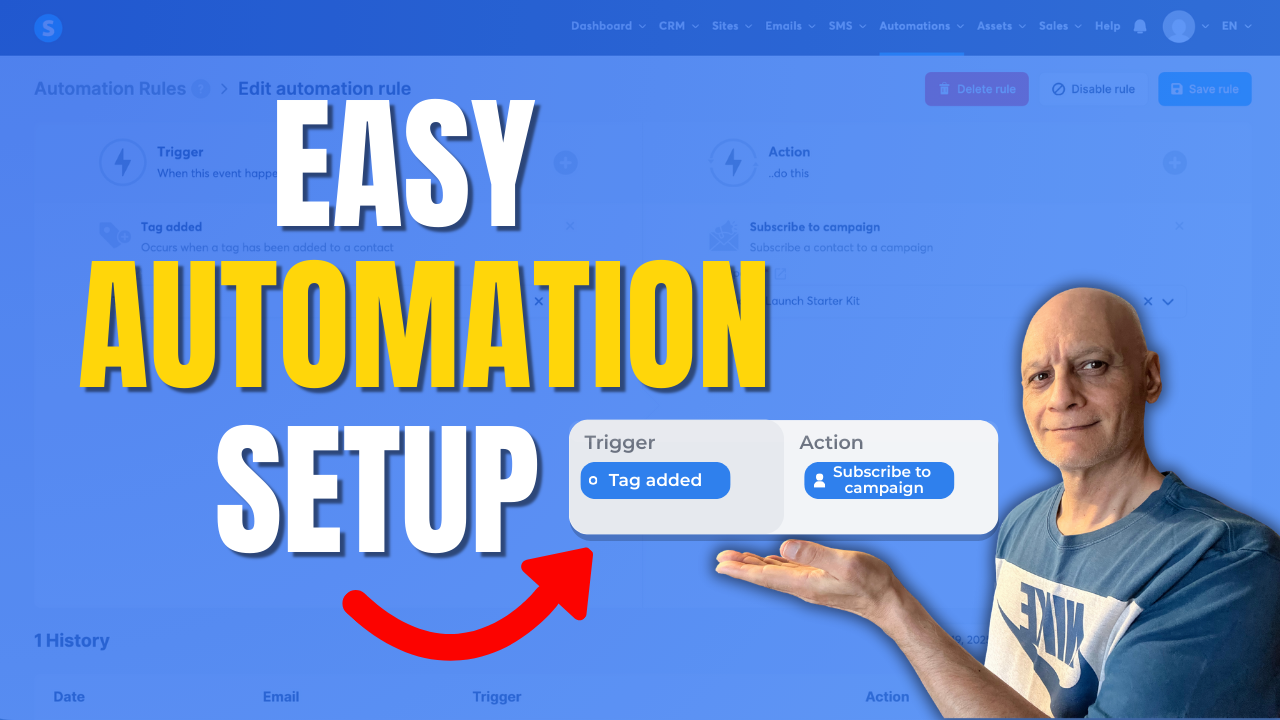
    Learn how to trigger automation when a tag is added in Systeme.io.

    In this step-by-step tutorial, you’ll discover how to use tags as automation triggers inside Systeme.io to automatically start email campaigns, apply actions, and build hands-free workflows.
    This method is ideal for:

    ✅ Email marketing automation
    ✅ Funnels and follow-ups
    ✅ Course access delivery
    ✅ Affiliate and lead automation

    You’ll see exactly where to click, how to set up automation rules, and how to test everything so it works correctly.

    🔹 What you’ll learn:

    ✅ How Systeme.io automation rules work
    ✅ How to trigger actions when a tag is added
    ✅ How to automate email campaigns with tags
    ✅ Beginner-friendly Systeme.io automation setup

    If you want to save time and stop doing things manually in Systeme.io, this tutorial will help. 


    Next video (recommended): Most Beginners Miss This Systeme.io Sales Trick

    ✅ Free resource
    📌 Beginner Funnel Checklist / Freebie:
    🔗https://www.pagebuilderacademy.com/starter

    Get a FREE Systeme.io account below:
    🔗https://www.pagebuilderacademy.com/systeme

    See my full Systeme.io review + bonuses:
    🔗https://www.pagebuilderacademy.com/2r8b

    Timestamps:
    0:00 – Intro
    0:38 – Navigating to Automations
    0:54 – Select rules
    1:00 – Create a new rule
    1:08 – Adding a trigger
    1:54 – Adding an action
    2:37 – Save the rule
    3:06 – Doing a manual test
    3:27 – Selecting a test contact
    3:49 – Checking that the automation has run correctly
    4:57 – Outro

    #systemeio #systemeiotutorial #pagebuilder #funnelbuilder #onlinemarketingtips #emailmarketing #pagebuilderacademy

    ========================
    QUESTIONS? CONTACT ME!
    ========================

    EMAIL: zaf@pagebuilderacademy.com

    ===========
    FOLLOW ME
    ===========

    ▶ YOUTUBE SUBSCRIBE – @PageBuilderAcademy

    ============
    DISCLAIMER
    ============
    Some of the links in this description may be affiliate links, which means I receive a small commission at NO ADDITIONAL cost to you if you decide to purchase something.
  • Add a Countdown Timer in Systeme.io (Fast & Easy)

    Add a Countdown Timer in Systeme.io (Fast & Easy)

    In this quick Systeme.io tutorial, you’ll learn how to add a countdown timer to any funnel or landing page to boost urgency and increase conversions.

    I’ll walk you step-by-step through the three Systeme.io countdown modes — fixed date, delay timer, and daily reset — and show you when to use each one for maximum results.

    Whether you’re running a limited-time promo, creating evergreen scarcity, or highlighting a daily offer, countdown timers can dramatically improve your sales funnel performance. And the best part? Systeme.io makes it incredibly easy, even if you’re a complete beginner.

    🎯 What You’ll Learn:

    • How to add the Countdown element inside the Page Builder
    • Fixed Time & Date countdown setup
    • Delay countdown for evergreen funnels
    • Daily countdown for recurring offers
    • What happens when the timer expires
    • Best practices for using timers ethically and effectively

    ⏳ Perfect for:
    • Sales pages
    • Offer deadlines
    • Evergreen funnels
    • Launch sequences
    • High-converting landing pages

    If you found this helpful, be sure to LIKE the video and SUBSCRIBE for more Systeme.io tutorials every week.

    ✅ Free resource
    📌 Beginner Funnel Checklist / Freebie:
    🔗https://www.pagebuilderacademy.com/starter

    Get a FREE Systeme.io account below:
    🔗https://www.pagebuilderacademy.com/systeme

    See my full Systeme.io review + bonuses:
    🔗https://www.pagebuilderacademy.com/2r8b

    Timestamps:
    0:00 – Intro
    0:36 – Navigating to our page
    0:45 – Select Required Funnel
    1:01 – Go into the page editor
    1:31 – Adding the countdown timer
    1:54 – Selecting the countdown timer
    2:18 – What each countdown timer mode does
    5:07 – Configuring the countdown timer
    7:33 – Saving & previewing the countdown timer
    7:47 – Things to check.
    9:10 – Outro

    #systemeio #systemeiotutorial #pagebuilder #funnelbuilder #onlinemarketingtips #emailmarketing #pagebuilderacademy

    ========================
    QUESTIONS? CONTACT ME!
    ========================

    EMAIL: zaf@pagebuilderacademy.com

    ===========
    FOLLOW ME
    ===========

    ▶ YOUTUBE SUBSCRIBE – @PageBuilderAcademy

    ============
    DISCLAIMER
    ============
    Some of the links in this description may be affiliate links, which means I receive a small commission at NO ADDITIONAL cost to you if you decide to purchase something.

  • How to trigger automation when a tag is added in Systeme.io

    How to trigger automation when a tag is added in Systeme.io

    Learn how to trigger automation when a tag is added in Systeme.io.

    In this beginner-friendly tutorial, you’ll see how to create automation rules, use tags as triggers, and automatically start actions like email campaigns or course access.

    This Systeme.io automation setup is perfect for email marketing, funnels, and hands-free follow-up.

    Click to play

    👉 Topics covered:


    ✅ Systeme.io automation rules

    ✅ Using tags as triggers

    ✅ Automating email campaigns

    ✅ Beginner Systeme.io tutorial


    Subscribe for more Systeme.io and online marketing tutorials.

    🎥 Next video (recommended): How to tag contacts automatically by funnel step
     How to Trigger an Automation When a Tag is Added

    ✅ Free resource

    📌 Beginner Funnel Checklist / Freebie:

    🔗https://www.pagebuilderacademy.com/starter

    Get a FREE Systeme.io account below:

    🔗https://www.pagebuilderacademy.com/systeme

    See my full Systeme.io review + bonuses:

    🔗https://www.pagebuilderacademy.com/2r8b


    Timestamps:

    0:00 – Intro

    0:38 – Navigating to Rules

    0:48 – Creating a new rule

    0:55 – Creating a trigger

    1:12 – Adding a tag for the trigger

    1:29 – Add a rule

    2:02 – Selecting what we want to happen when our tag is added

    2:29 – Saving the new rule and previewing it.

    3:05 – Manually testing the new rule

    4:48 – Outro


    #systemeio #systemeiotutorial #pagebuilder #funnelbuilder #onlinemarketingtips #emailmarketing #pagebuilderacademy


    ========================

    QUESTIONS? CONTACT ME!

    ========================


    EMAIL: zaf@pagebuilderacademy.com


    ===========

    FOLLOW ME

    ===========


    ▶ YOUTUBE SUBSCRIBE – @PageBuilderAcademy


    ============

    DISCLAIMER

    ============

    Some of the links in this description may be affiliate links, which means I receive a small commission at NO ADDITIONAL cost to you if you decide to purchase something.

  • How to see which funnel a contact came from in Systeme.io

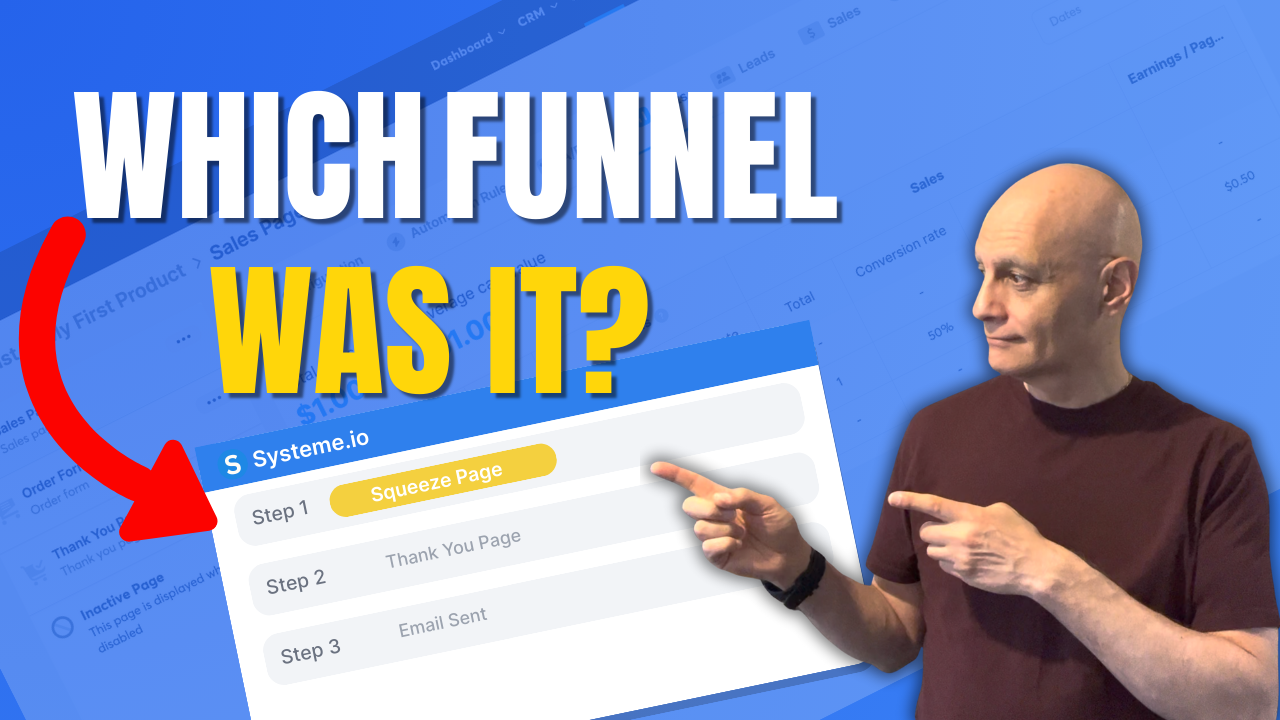
    How to see which funnel a contact came from in Systeme.io

    Want to see which funnel a contact came from in Systeme.io?

    In this tutorial, I’ll show you the most reliable method: using Automation Rules on your funnel step with the trigger “Funnel step form subscribed”, then automatically applying a source tag. That way, every contact permanently shows their funnel source inside their contact record.
    You’ll also learn how to filter your contact list by those source tags to quickly see how many leads each funnel is producing.

    Download The Free Starter Kit: A step-by-step checklist and a ready-made landing page template (for Systeme.io)

    🔗https://www.pagebuilderacademy.com/starter

    💡 Grab yourself a free Systeme.io account: An all-in-one platform, create emails, funnels and more!
    🔗https://www.pagebuilderacademy.com/systeme

    See my full Systeme.io review + bonuses:
    🔗https://www.pagebuilderacademy.com/2r8b


    Timestamps:
    0:00 – Intro
    0:38 – Navigating to Contacts
    0:45 – Select Required contact
    1:23 – Finding the page your contact signed up to
    1:10 – Add a section
    2:18 – Outro

    #systemeio #systemeiotutorial #pagebuilder #funnelbuilder #onlinemarketingtips #emailmarketing #PageBuilderAcademy

    ========================
    QUESTIONS? CONTACT ME!
    ========================

    EMAIL: zaf@pagebuilderacademey.com

    ===========
    FOLLOW ME
    ===========

    ▶ YOUTUBE SUBSCRIBE – @PageBuilderAcademy

    ============
    DISCLAIMER
    ============

    Some of the links in this description may be affiliate links, which means I receive a small commission at NO ADDITIONAL cost to you if you decide to purchase something.

    These are my opinions and do not represent the views of the companies that create these products.

    My opinions are based on my personal experience and research. I never recommend poor-quality products or create false reviews to generate sales.

    I intend to explain products so you can make an informed decision on which ones suit your needs best.

    Any forward-looking statements in this video are intended to express my opinions. They are opinions only and should not be relied upon as fact.

    Success in any endeavour is based on many factors, individual to you. I do not know your educational background, your skills, your prior experience, or the time you can and will devote to the endeavour.
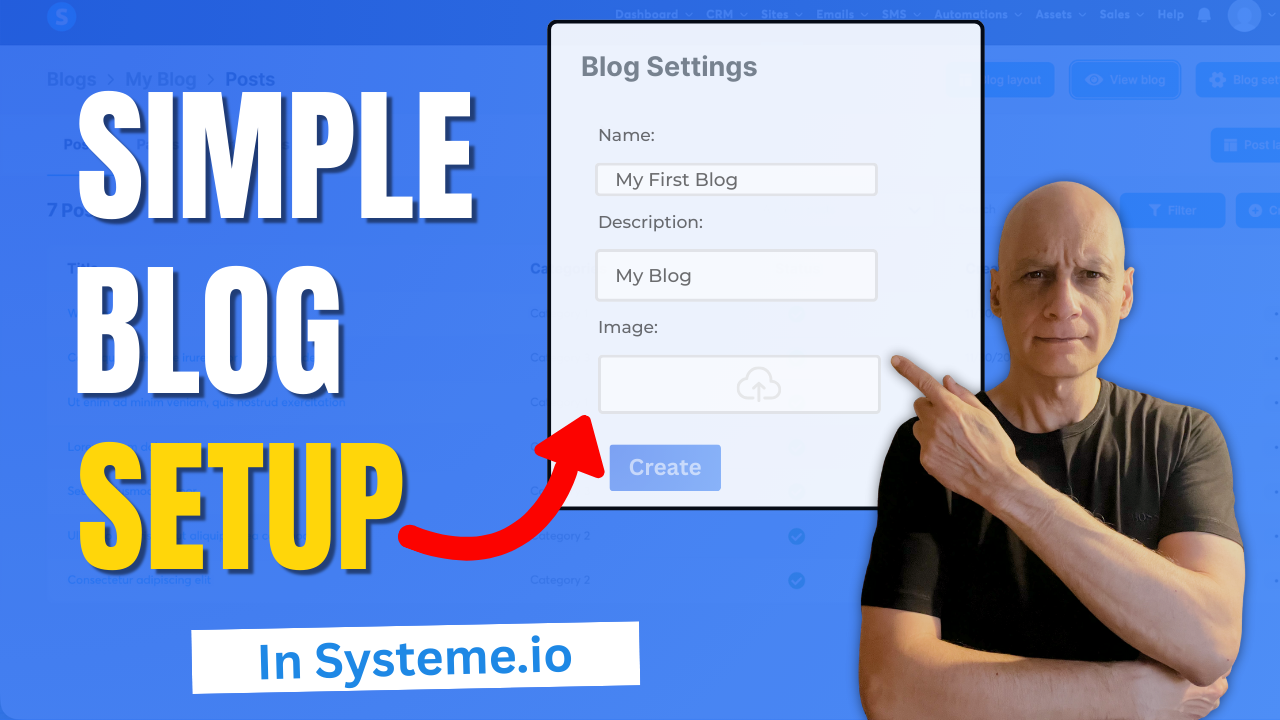
  • How to set up your first blog in Systeme.io

    How to set up your first blog in Systeme.io

    Ready to publish your very first blog without complicated setup, hosting, or plugins?

    In this quick beginner-friendly tutorial, I’ll show you step-by-step how to set up your first blog inside Systeme.io — a completely free all-in-one platform perfect for new creators.

    Click to play

    Inside this video, you’ll learn:

    ✔️ Where to find the blog feature
    ✔️ How to create your blog
    ✔️ How to publish your first blog post
    ✔️ How to customise your settings and view your site live

    If you’re brand new to Systeme.io, this is the perfect starting point.

    👉 If you want to build better-performing pages inside Systeme.io, grab the free resource linked below.

    Download The Free Starter Kit: A step-by-step checklist and a ready-made landing page template (for Systeme.io)

    🔗https://www.pagebuilderacademy.com/starter

    💡 Grab yourself a free Systeme.io account: An all-in-one platform, create emails, funnels and more!

    🔗https://www.pagebuilderacademy.com/systeme

    See my full Systeme.io review + bonuses:
    🔗https://www.pagebuilderacademy.com/2r8b

    Timestamps:

    0:00 – Intro
    0:21 – Navigate to blogs
    0:41 – Create a blog
    1:38 – Blog settings
    2:11 – Creating your first post
    2:46 – Adding a featured image
    3:25 – Editing the post
    4:11 – Saving and publishing our post
    4:42 – Previewing our newly created blog
    5:01 – Outro

    #systemeio #systemeiotutorial #pagebuilder #funnelbuilder #onlinemarketingtips #emailmarketing #PageBuilderAcademy #systemeiotutorial

    Next: How to link blog posts internally in Systeme.io


    ========================
    QUESTIONS? CONTACT ME!
    ========================

    EMAIL: zaf@pagebuilderacademey.com

    ===========
    FOLLOW ME
    ===========

    ▶ YOUTUBE SUBSCRIBE – @PageBuilderAcademy

    ============
    DISCLAIMER
    ============

    Some of the links in this description may be affiliate links, which means I receive a small commission at NO ADDITIONAL cost to you if you decide to purchase something.

    These are my opinions and do not represent the views of the companies that create these products.

    My opinions are based on my personal experience and research. I never recommend poor-quality products or create false reviews to generate sales.

    I intend to explain products so you can make an informed decision on which ones suit your needs best.

    Any forward-looking statements in this video are intended to express my opinions. They are opinions only and should not be relied upon as fact.

    Success in any endeavour is based on many factors, individual to you. I do not know your educational background, your skills, your prior experience, or the time you can and will devote to the endeavour.
  • The Easiest Way to Add Stunning Backgrounds in Systeme.io

    The Easiest Way to Add Stunning Backgrounds in Systeme.io

    Want to make your Systeme.io pages stand out and look more professional?

    In this quick tutorial, you’ll learn step-by-step how to add an image background section in Systeme.io — no design skills needed!

    Whether you’re building a landing page, sales page, or funnel, adding a background image is one of the easiest ways to give your pages a polished, branded look.

    Click to play

    In this video, you’ll learn:
    ✅ How to add a new section in Systeme.io
    ✅ How to upload and use an image as your section background
    ✅ How to adjust image size, position, and overlay colour for a clean design
    ✅ How to add text or buttons on top of your image

    Download The Free Starter Kit: A step-by-step checklist and a ready-made landing page template (for Systeme.io)

    🔗https://www.pagebuilderacademy.com/starter


    💡See my full Systeme.io review + bonuses:
    🔗https://www.pagebuilderacademy.com/2r8b

    I use Systeme.io to run my funnels, pages, and emails — both links above will help you get started faster.
    Timestamps:
    0:00 – Intro
    0:29 – Navigating to Sales Funnels
    0:48 – Select Required Funnel
    1:01 – Go into Page Editor
    1:12 – Add a section
    1:47 – Add/upload background image
    2:54 – Adjusting settings for background image
    4:51 – Adding a button element
    5:08 – Formatting the button
    6:10 – Configuring button action
    6:31 – Previewing the page
    6:59 – Checking in mobile view
    7:42 – Checking and adjusting the background image
    9:01 – Outro

    #systemeio #systemeiotutorial #pagebuilder #funnelbuilder #onlinemarketingtips #PageBuilderAcademy #SystemeioForBeginners #landingpagedesign

    ========================
    QUESTIONS? CONTACT ME!
    ========================

    EMAIL: zaf@pagebuilderacademey.com

    ===========
    FOLLOW ME
    ===========

    ▶ YOUTUBE SUBSCRIBE – @PageBuilderAcademy

    ============
    DISCLAIMER
    ============

    Some of the links in this description may be affiliate links, which means I receive a small commission at NO ADDITIONAL cost to you if you decide to purchase something.

    These are my opinions and do not represent the views of the companies that create these products.

    My opinions are based on my personal experience and research. I never recommend poor-quality products or create false reviews to generate sales.

    I intend to explain products so you can make an informed decision on which ones suit your needs best.

    Any forward-looking statements in this video are intended to express my opinions. They are opinions only and should not be relied upon as fact.

    Success in any endeavour is based on many factors, individual to you. I do not know your educational background, your skills, your prior experience, or the time you can and will devote to the endeavour.
  • Add GDPR Consent to Your Systeme.io Forms the Easy Way

    Add GDPR Consent to Your Systeme.io Forms the Easy Way

    Want to make your Systeme.io forms GDPR compliant?

    In this short beginner-friendly tutorial, you’ll learn exactly where to add GDPR checkboxes inside Systeme.io so you can collect emails safely, transparently, and in line with best practices.

    I’ll walk you through where to find the legal checkbox settings, how to customise the consent text, and how to ensure subscribers must tick the checkbox before submitting the form. Perfect if you’re building landing pages, funnels, or email opt-in forms inside Systeme.io.
    Want to make your Systeme.io forms GDPR compliant?

    In this short beginner-friendly tutorial, you’ll learn exactly where to add GDPR checkboxes inside Systeme.io so you can collect emails safely, transparently, and in line with best practices.

    I’ll walk you through where to find the legal checkbox settings, how to customise the consent text, and how to ensure subscribers must tick the checkbox before submitting the form. Perfect if you’re building landing pages, funnels, or email opt-in forms inside Systeme.io.

    📌 What you’ll learn:
    • Where GDPR checkboxes are located in Systeme.io
    • How to add customised consent text
    • How to make the checkbox required
    • How to preview and test your form

    Download The Free Starter Kit: A step-by-step checklist and a ready-made landing page template (for Systeme.io)

    🔗https://www.pagebuilderacademy.com/starter

    💡 Grab yourself a free Systeme.io account: An all-in-one platform, create emails, funnels and more!

    🔗https://www.pagebuilderacademy.com/systeme

    Timestamps:

    0:00 – Intro
    0:34 – Navigating to your funnel or blog
    1:01 – Select Required page
    1:23 – Go into Page Editor
    1:16 – Go to the page editor
    1:27 – Adding the checkbox
    1:54 – Add your GDPR message
    2:51 – Changing the default tickbox message
    3:37 – Formatting the message
    4:11 – Adding a privacy policy link
    5:14 – Saving and previewing
    5:54 – View Funnel step
    6:02 – Testing our GDPR message
    6:34 – Outro

    #systemeio #systemeiotutorial #pagebuilder #funnelbuilder #onlinemarketingtips #emailmarketing #PageBuilderAcademy

    ========================
    QUESTIONS? CONTACT ME!
    ========================

    EMAIL: zaf@pagebuilderacademey.com

    ===========
    FOLLOW ME
    ===========

    ▶ YOUTUBE SUBSCRIBE – @PageBuilderAcademy

    ============
    DISCLAIMER
    ============

    Some of the links in this description may be affiliate links, which means I receive a small commission at NO ADDITIONAL cost to you if you decide to purchase something.

    These are my opinions and do not represent the views of the companies that create these products.

    My opinions are based on my personal experience and research. I never recommend poor-quality products or create false reviews to generate sales.

    I intend to explain products so you can make an informed decision on which ones suit your needs best.

    Any forward-looking statements in this video are intended to express my opinions. They are opinions only and should not be relied upon as fact.

    Success in any endeavour is based on many factors, individual to you. I do not know your educational background, your skills, your prior experience, or the time you can and will devote to the endeavour.
  • How to find unsubscribed contacts in Systeme.io

    How to find unsubscribed contacts in Systeme.io

    Want to know who unsubscribed from your Systeme.io emails?

    In this quick beginner tutorial, you’ll learn how to find unsubscribed contacts step-by-step—so you can keep your list clean and stay compliant. Perfect for anyone using Systeme.io for email marketing or funnels.
    🔹 What you’ll learn:

    ✅ How to view unsubscribed contacts in Systeme.io
    ✅ How to filter by email status
    ✅ How to export unsubscribed contacts

    📘 Subscribe for more Systeme.io tutorials from Page Builder Academy!

    Download The Free Starter Kit: A step-by-step checklist and a ready-made landing page template (for Systeme.io)

    🔗https://www.pagebuilderacademy.com/starter

    💡 Grab yourself a free Systeme.io account: An all-in-one platform, create emails, funnels and more!

    🔗https://www.pagebuilderacademy.com/systeme

    Timestamps:
    0:00 – Intro
    0:38 – Navigating to contacts
    0:44 – Quickly spotting unsubscribes
    1:22 – Creating a filter
    1:37 – Filter criteria
    2:10 – Naming & saving your filter
    2:42 – Accessing the saved filter
    3:08 – Deleting unsubscribes
    3:21 – Export unsubscribes
    4:18 – Outro Free resource

    #systemeio #systemeiotutorial #pagebuilder #funnelbuilder #onlinemarketingtips #emailmarketing #PageBuilderAcademy #systemeiotutorial

    ========================
    QUESTIONS? CONTACT ME!
    ========================

    EMAIL: zaf@pagebuilderacademey.com

    ===========
    FOLLOW ME
    ===========

    ▶ YOUTUBE SUBSCRIBE – @PageBuilderAcademy

    ============
    DISCLAIMER
    ============

    Some of the links in this description may be affiliate links, which means I receive a small commission at NO ADDITIONAL cost to you if you decide to purchase something.

    These are my opinions and do not represent the views of the companies that create these products.

    My opinions are based on my personal experience and research. I never recommend poor-quality products or create false reviews to generate sales.

    I intend to explain products so you can make an informed decision on which ones suit your needs best.

    Any forward-looking statements in this video are intended to express my opinions. They are opinions only and should not be relied upon as fact.

    Success in any endeavour is based on many factors, individual to you. I do not know your educational background, your skills, your prior experience, or the time you can and will devote to the endeavour.