Category: Systeme.io

Posts on using System.io.

  • Change Your Button Hover Colour Fast In Systeme.io

    Change Your Button Hover Colour Fast In Systeme.io

    Want your Systeme.io buttons to stand out and look more professional?

    In this beginner-friendly tutorial, I’ll show you exactly how to change the hover colour on any button inside Systeme.io. It’s a tiny design tweak that makes a huge difference in how your pages feel and how confidently people click your calls-to-action.
    You’ll learn:
    ✔ Where to find the button hover colour settings
    ✔ How to customise the hover background and text colour
    ✔ How to preview your changes instantly
    ✔ Tips to make your buttons clearer, cleaner, and more clickable

    Perfect for beginners, funnel builders, and anyone who wants their Systeme.io pages to look more polished without touching code.

    If this helps, don’t forget to like and subscribe for more bite-sized Systeme.io tutorials.

    Download The Free Starter Kit: A step-by-step checklist and a ready-made landing page template (for Systeme.io)

    🔗https://www.pagebuilderacademy.com/starter

    💡 Grab yourself a free Systeme.io account: An all-in-one platform, create emails, funnels and more!

    🔗https://www.pagebuilderacademy.com/systeme


    Timestamps:

    0:00 – Intro
    0:37 – Navigating to your page
    1:12 – Go to page editor
    1:23 – Go into Page Editor
    1:19 – Select the required button(s)
    2:04 – Adding hover effect
    2:54 – Adding text and button hover effect
    4:31 – Adding text and button hover effect to the second button
    5:28 – Save and preview
    6:14 – Outro

    #systemeio #systemeiotutorial #pagebuilder #funnelbuilder #onlinemarketingtips #emailmarketing #PageBuilderAcademy

    ========================
    QUESTIONS? CONTACT ME!
    ========================

    EMAIL: zaf@pagebuilderacademey.com

    ===========
    FOLLOW ME
    ===========

    ▶ YOUTUBE SUBSCRIBE – @Pagebuilderacademy

    ============
    DISCLAIMER
    ============

    Some of the links in this description may be affiliate links, which means I receive a small commission at NO ADDITIONAL cost to you if you decide to purchase something.

    These are my opinions and do not represent the views of the companies that create these products.

    My opinions are based on my personal experience and research. I never recommend poor-quality products or create false reviews to generate sales.

    I intend to explain products so you can make an informed decision on which ones suit your needs best.

    Any forward-looking statements in this video are intended to express my opinions. They are opinions only and should not be relied upon as fact.

    Success in any endeavour is based on many factors, individual to you. I do not know your educational background, your skills, your prior experience, or the time you can and will devote to the endeavour.
  • How to add GDPR checkboxes in Systeme.io forms

    How to add GDPR checkboxes in Systeme.io forms

    Want to stay GDPR compliant when collecting emails in Systeme.io?

    In this quick beginner-friendly tutorial, I’ll show you exactly how to add GDPR checkboxes to your forms so subscribers know what they’re agreeing to — and your list stays clean and transparent.

    You’ll learn where the checkbox settings are, how to customise the text, and how to make the checkbox required before someone can submit their details.

    Perfect for anyone building funnels, email lists, or lead-gen pages inside Systeme.io.
    📌 What you’ll learn:
    • Where to find GDPR checkbox settings
    • How to add legal consent text
    • How to make the checkbox required
    • How to preview and test your form

    Download The Free Starter Kit: A step-by-step checklist and a ready-made landing page template (for Systeme.io)

    🔗https://www.pagebuilderacademy.com/starter

    💡 Grab yourself a free Systeme.io account: An all-in-one platform, create emails, funnels and more!

    🔗https://www.pagebuilderacademy.com/systeme


    Timestamps:

    0:00 – Intro
    0:32 – Navigating to your page
    0:49 – Select Required Funnel or page
    1:03 – Go into Page Editor
    1:16 – Selecting and placing the required element
    1:45 – Adding your GDPR message
    2:25 – Editing the default message for when the box isn’t ticked
    3:19 – Formatting the GDPR message
    3:53 – Saving & and testing
    4:44 – Outro

    #systemeio #systemeiotutorial #pagebuilder #funnelbuilder #onlinemarketingtips #emailmarketingtips #PageBuilderAcademy #emailmarketing

    ========================
    QUESTIONS? CONTACT ME!
    ========================

    EMAIL: zaf@pagebuilderacademey.com

    ===========
    FOLLOW ME
    ===========

    ▶ YOUTUBE SUBSCRIBE – @PageBuilderAcademy

    ============
    DISCLAIMER
    ============

    Some of the links in this description may be affiliate links, which means I receive a small commission at NO ADDITIONAL cost to you if you decide to purchase something.

    These are my opinions and do not represent the views of the companies that create these products.

    My opinions are based on my personal experience and research. I never recommend poor-quality products or create false reviews to generate sales.

    I intend to explain products so you can make an informed decision on which ones suit your needs best.

    Any forward-looking statements in this video are intended to express my opinions. They are opinions only and should not be relied upon as fact.

    Success in any endeavour is based on many factors, individual to you. I do not know your educational background, your skills, your prior experience, or the time you can and will devote to the endeavour.
  • How to trigger automation when a tag is added in Systeme.io

    How to trigger automation when a tag is added in Systeme.io

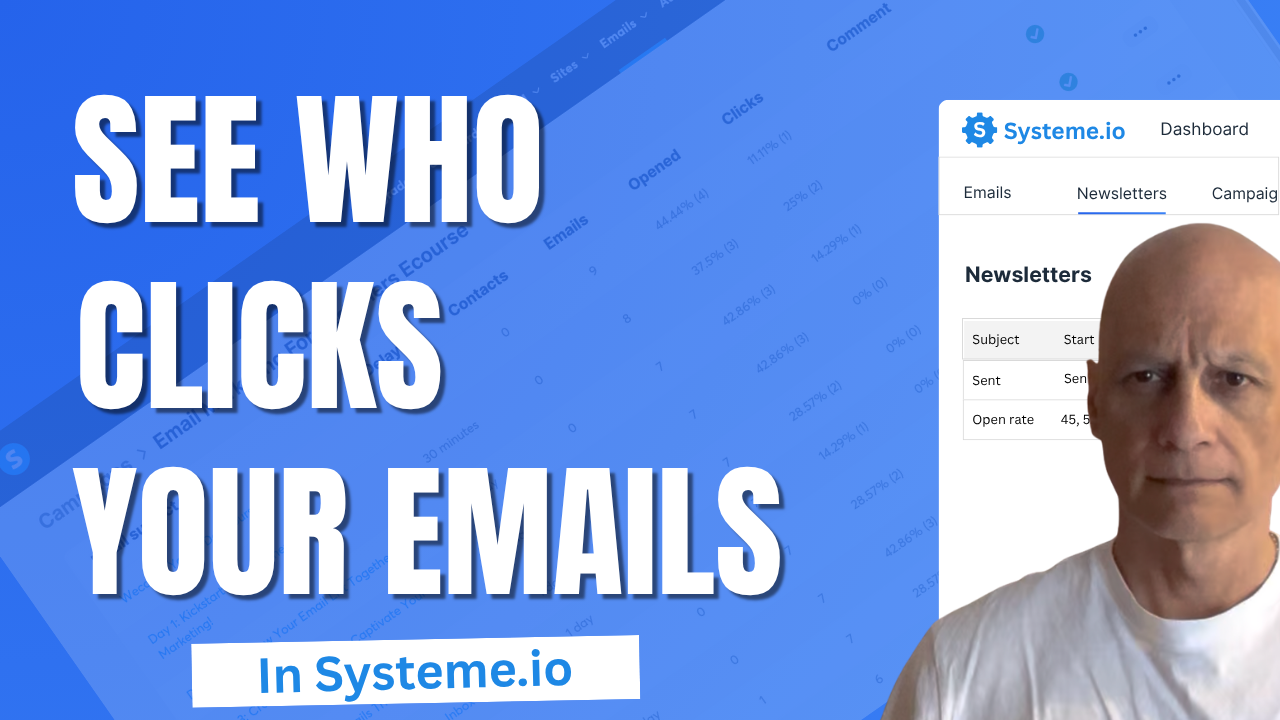
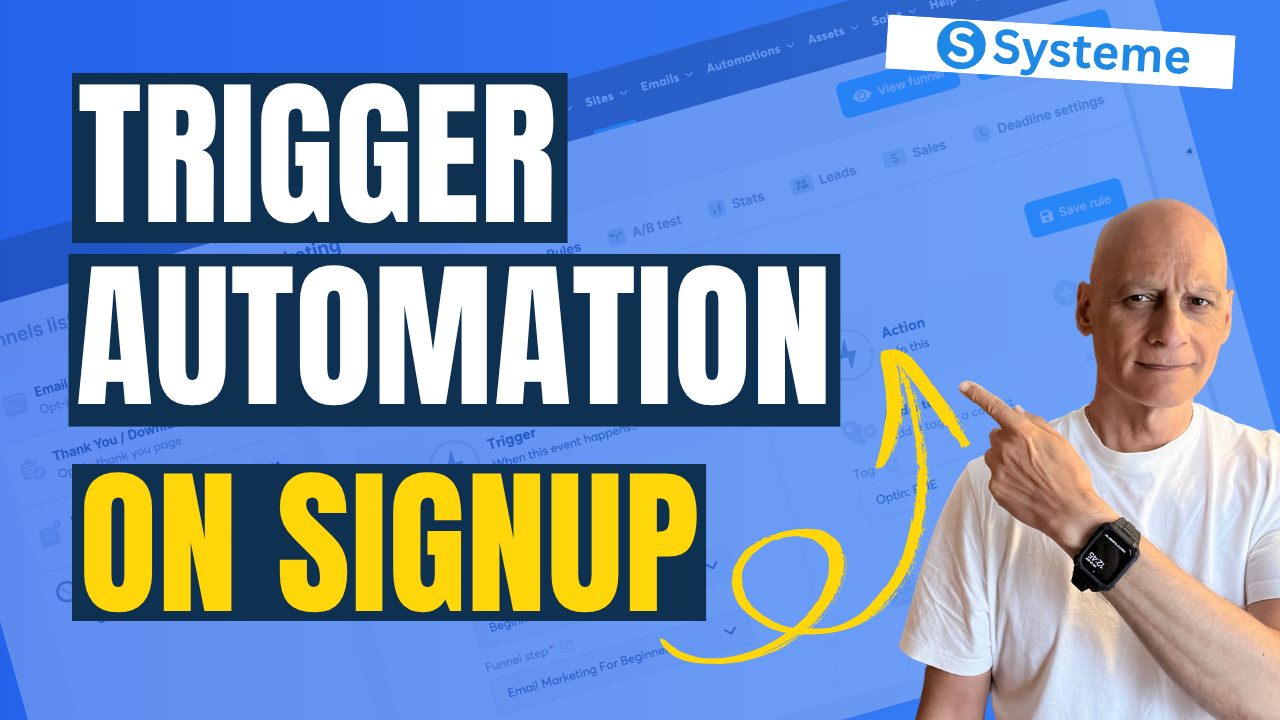
    Want to know if people are actually clicking the links in your emails?
    In this quick Systeme.io tutorial.

    You’ll learn where to find your click stats for both newsletters and email campaigns, so you can see which emails perform best and what to improve next.

    Perfect for beginners who want to get confident using Systeme.io’s built-in email analytics.
    💡 What You’ll Learn:

    ✅ Where to find email click rate stats in Systeme.io
    ✅ How to view open and click rates for newsletters
    ✅ How to check campaign-level email analytics
    ✅ Why tracking clicks helps improve conversions

    Download The Free Starter Kit: A step-by-step checklist and a ready-made landing page template (for Systeme.io)

    🔗https://www.pagebuilderacademy.com/starter

    💡 Grab yourself a free Systeme.io account: An all-in-one platform, create emails, funnels and more!

    🔗https://www.pagebuilderacademy.com/systeme

    Timestamps:
    0:00 – Intro
    0:27 – Navigating to Newsletters
    0:44 – Viewing in-depth stats for your newsletter
    1:39 – Viewing your campaign stats
    2:10 – Viewing the detailed stats
    2:43 – Outro

    #systemeio #systemeiotutorial #pagebuilder #funnelbuilder #onlinemarketingtips #PageBuilderAcademy #systemeiotutorial #SystemeioForBeginners

    ========================
    QUESTIONS? CONTACT ME!
    ========================

    EMAIL: zaf@pagebuilderacademey.com

    ===========
    FOLLOW ME
    ===========

    ▶ YOUTUBE SUBSCRIBE – @PageBuilderAcademy

    ============
    DISCLAIMER
    ============

    Some of the links in this description may be affiliate links, which means I receive a small commission at NO ADDITIONAL cost to you if you decide to purchase something.

    These are my opinions and do not represent the views of the companies that create these products.

    My opinions are based on my personal experience and research. I never recommend poor-quality products or create false reviews to generate sales.

    I intend to explain products so you can make an informed decision on which ones suit your needs best.

    Any forward-looking statements in this video are intended to express my opinions. They are opinions only and should not be relied upon as fact.

    Success in any endeavour is based on many factors, individual to you. I do not know your educational background, your skills, your prior experience, or the time you can and will devote to the endeavour.
  • How to add an image background section in Systeme.io

    How to add an image background section in Systeme.io

    Want to make your Systeme.io pages stand out?

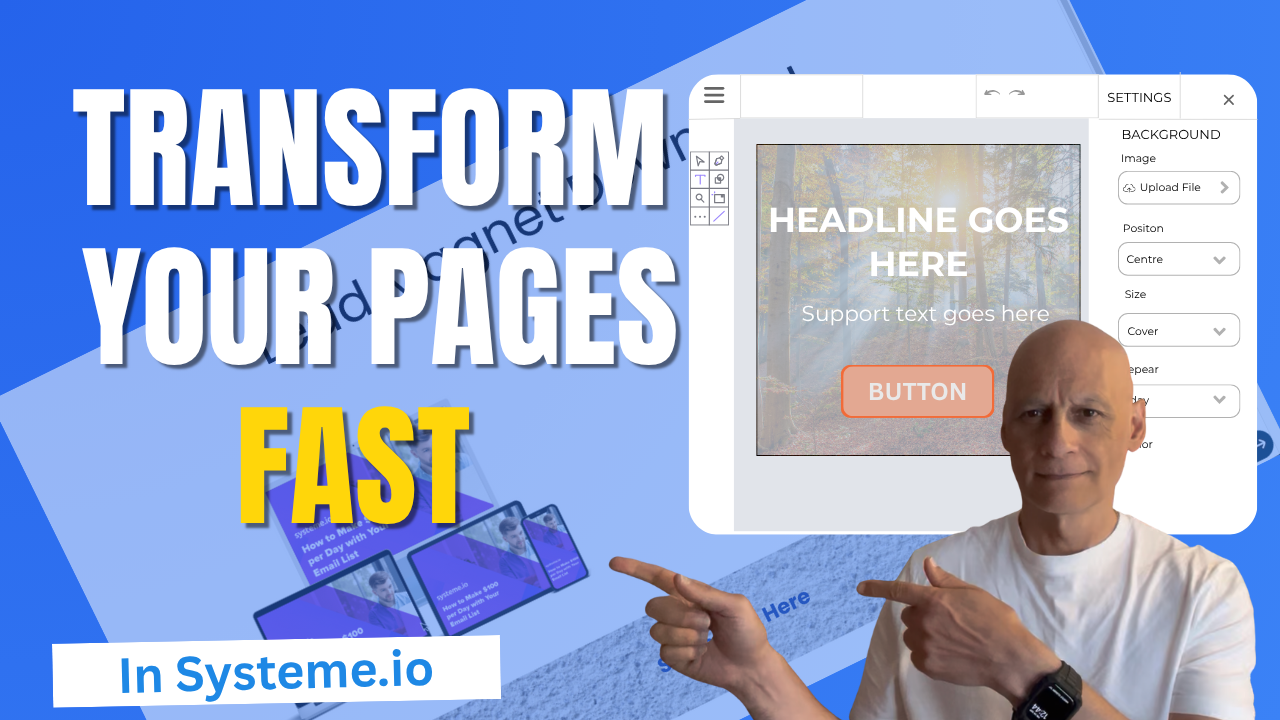
    In this quick tutorial, you’ll learn step-by-step how to add an image background section inside Systeme.io.

    Perfect for beginners who want to make their landing pages look more professional without needing any design skills.
    In this video, you’ll learn:

    ✅ How to add a section in Systeme.io
    ✅ How to upload and use a background image
    ✅ How to make your background look clean and professional

    💡 Follow along using my free Systeme.io link below!

    Download The Free Starter Kit: A step-by-step checklist and a ready-made landing page template (for Systeme.io)

    🔗https://www.pagebuilderacademy.com/starter

    💡 Grab yourself a free Systeme.io account: An all-in-one platform, create emails, funnels and more!

    🔗https://www.pagebuilderacademy.com/systeme


    Timestamps:
    0:00 – Intro
    0:38 – Navigating to Sales Funnels
    0:45 – Select Required Funnel
    1:23 – Go into Page Editor
    1:13 – Adding a section
    1:51 – Adding an image to the section
    2:44 – Adjusting background section
    3:41 – Adding a text element to the section
    4:09 – Formatting the text element
    4:56 – Outro

    #systemeio #systemeiotutorial #pagebuilder #funnelbuilder #onlinemarketingtips

    ========================
    QUESTIONS? CONTACT ME!
    ========================

    EMAIL: zaf@pagebuilderacademey.com

    ===========
    FOLLOW ME
    ===========

    ▶ YOUTUBE SUBSCRIBE – @PageBuilderAcademy

    ============
    DISCLAIMER
    ============

    Some of the links in this description may be affiliate links, which means I receive a small commission at NO ADDITIONAL cost to you if you decide to purchase something.

    These are my opinions and do not represent the views of the companies that create these products.

    My opinions are based on my personal experience and research. I never recommend poor-quality products or create false reviews to generate sales.

    I intend to explain products so you can make an informed decision on which ones suit your needs best.

    Any forward-looking statements in this video are intended to express my opinions. They are opinions only and should not be relied upon as fact.

    Success in any endeavour is based on many factors, individual to you. I do not know your educational background, your skills, your prior experience, or the time you can and will devote to the endeavour.
  • Edit Page Layouts Fast with Systeme.io

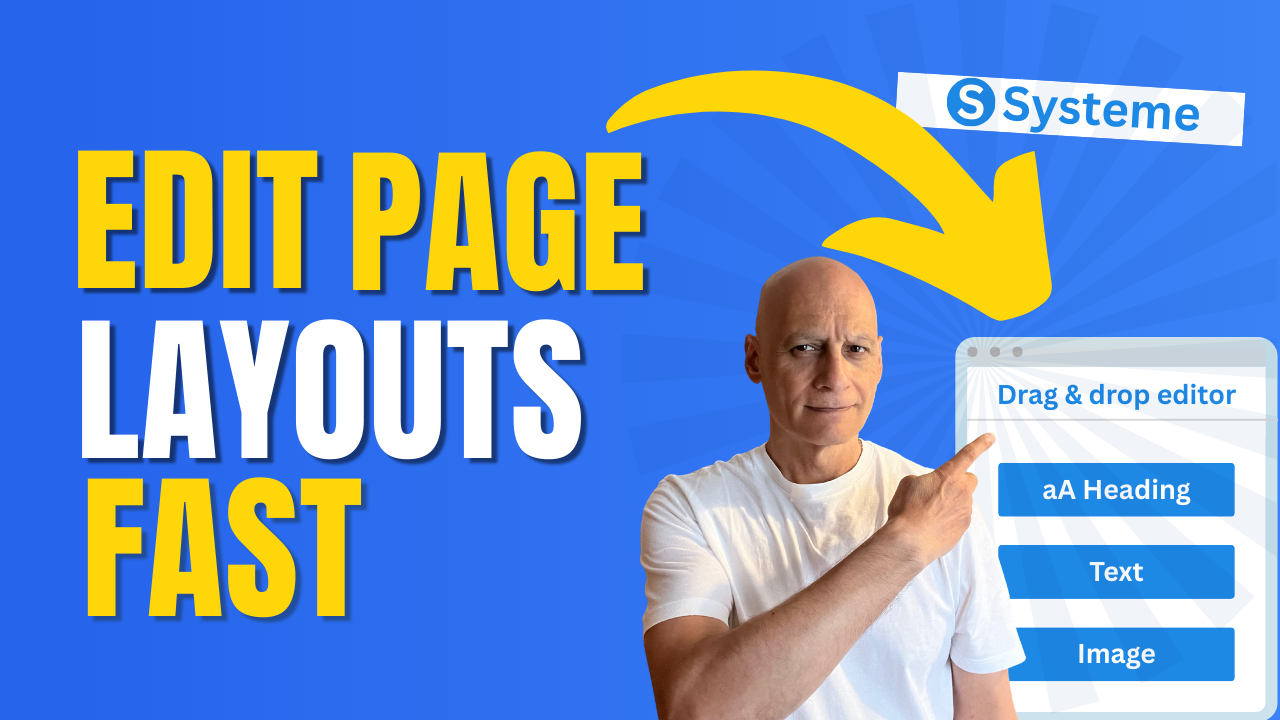
    Edit Page Layouts Fast with Systeme.io

    Want to know how to change your page layout in Systeme.io without the confusion?

    In this short step-by-step tutorial, I’ll walk you through exactly where to go inside the editor and how to adjust your layout so your page looks clean, professional, and aligned with your brand.

    Click to play

    Whether you’re just starting out or tidying up your first funnel, this beginner-friendly Systeme.io tutorial will show you how to:

    ✅ Access the drag-and-drop editor
    ✅ Switch to a new layout style
    ✅ Adjust rows, columns, and sections
    ✅ Preview your page changes instantly

    By the end, you’ll have a page layout that looks exactly how you want—without wasting time.

    👉 If you don’t already have a free Systeme.io account, grab mine in the description below so you can follow along.

    Download The Free Starter Kit: A step-by-step checklist and a ready-made landing page template (for Systeme.io) 🔗https://optin.pagebuilderacademy.com

    💡 Grab yourself a free Systeme.io account: An all-in-one platform, create emails, funnels and more!

    🔗https://www.pagebuilderacademy.com/systeme

    Timestamps:
    0:00 – Intro
    0:49 – Select your funnel
    0:51 – Select Required Funnel
    1:01 – Got to the page editor
    1:18 – Sidebar elements
    1:38 – Adding a section
    1:54 – Adding a column
    2:05 – Adding elements
    3:00 – Changing the default text settings
    3:45 – Saving & previewing
    4:11 – Outro

    #systemeio #systemeiotutorial #pagebuilder #funnelbuilder #onlinemarketingtips

    ========================
    QUESTIONS? CONTACT ME!
    ========================

    EMAIL: zaf@pagebuilderacademey.com

    ===========
    FOLLOW ME
    ===========

    ▶ YOUTUBE SUBSCRIBE – @PageBuilderAcademy

    ============
    DISCLAIMER
    ============

    Some of the links in this description may be affiliate links, which means I receive a small commission at NO ADDITIONAL cost to you if you decide to purchase something.

    These are my opinions and do not represent the views of the companies that create these products.

    My opinions are based on my personal experience and research. I never recommend poor-quality products or create false reviews to generate sales.

    I intend to explain products so you can make an informed decision on which ones suit your needs best.

    Any forward-looking statements in this video are intended to express my opinions. They are opinions only and should not be relied upon as fact.

    Success in any endeavour is based on many factors, individual to you. I do not know your educational background, your skills, your prior experience, or the time you can and will devote to the endeavour.
  • How to add a logo to your emails in Systeme.io

    How to add a logo to your emails in Systeme.io

    Want your emails to stand out and look professional? In this quick tutorial, you’ll learn exactly how to add your logo to your emails in Systeme.io.

    I’ll walk you step by step through the process:

    ✅ Where to find your email editor in Systeme.io
    ✅ How to insert your logo
    ✅ How to preview and test your email

    By the end, you’ll have a branded email ready to impress your subscribers.

    Click to play

    👉 Don’t forget to subscribe for more beginner-friendly Systeme.io tutorials and grab your free Systeme.io account using the link below!

    Download The Free Starter Kit: A step-by-step checklist and a ready-made landing page template (for Systeme.io) 🔗https://optin.pagebuilderacademy.com

    💡 Grab yourself a free Systeme.io account: An all-in-one platform, create emails, funnels and more!

    🔗https://www.pagebuilderacademy.com/systeme

    How to Add a Custom Domain in Systeme.io
    https://youtu.be/WzAzCoGyOgk

    Timestamps:
    0:00 – Intro
    0:47 – Navigating to Emails
    0:51 – Select Required Option
    1:30 – Create or duplicate email
    2:17 – Using the basic editor
    2:32 – Inserting the logo
    3;28 – Positioning the logo
    4:16 – Testing the email
    5:27 – Outro

    #systemeio #systemeiotutorial #pagebuilder #funnelbuilder #onlinemarketingtips #emailmarketing #beginnertutorials

    ========================
    QUESTIONS? CONTACT ME!
    ========================

    EMAIL: zaf@pagebuilderacademey.com

    ===========
    FOLLOW ME
    ===========

    ▶ YOUTUBE SUBSCRIBE – @PageBuilderAcademy

    ============
    DISCLAIMER
    ============

    Some of the links in this description may be affiliate links, which means I receive a small commission at NO ADDITIONAL cost to you if you decide to purchase something.

    These are my opinions and do not represent the views of the companies that create these products.

    My opinions are based on my personal experience and research. I never recommend poor-quality products or create false reviews to generate sales.

    I intend to explain products so you can make an informed decision on which ones suit your needs best.

    Any forward-looking statements in this video are intended to express my opinions. They are opinions only and should not be relied upon as fact.

    Success in any endeavour is based on many factors, individual to you. I am not familiar with your educational background, skills, prior experience, or the time you can and will devote to the endeavour.
  • The Easiest Way to Check Funnel Stats in Systeme.io

    The Easiest Way to Check Funnel Stats in Systeme.io

    Want to know how your funnels are really performing inside Systeme.io? 🚀

    In this beginner-friendly video, I’ll show you exactly how to track funnel stats in Systeme.io — step by step. You’ll discover where to find your analytics, how to read the key numbers, and how to use them to improve your funnel results.

    Click to play

    By the end, you’ll know how to check visitors, leads, and conversion rates — without needing any complicated tools.

    👉 If you don’t already have a free Systeme.io account, grab one using the link in the description and start tracking your funnels today.

    📌 What you’ll learn in this video:

    Where to find funnel stats in Systeme.io
    How to read visitors, contacts, and conversions

    If you found this helpful, give the video a like 👍 and don’t forget to subscribe for more bite-sized Systeme.io tutorials.

    Video mentioned:
    Pages That Pop!
    https://youtu.be/De82UqkhaFE

    Download The Free Starter Kit: A step-by-step checklist and a ready-made landing page template (for Systeme.io) 🔗https://optin.pagebuilderacademy.com

    💡 Grab yourself a free Systeme.io account: An all-in-one platform, create emails, funnels and more!

    🔗https://www.pagebuilderacademy.com/systeme

    Timestamps:
    0:00 – Intro
    0:47 – Navigate to and select the required sales funnel
    0:51 – Select Required Funnel
    1:10 – Viewing Your Stats
    2:07 – Selecting the ‘Date’ range.
    2:55 – Outro

    #systemeio #systemeiotutorial #pagebuilder #funnelbuilder #onlinemarketingtips #funnels #analytics

    ========================
    QUESTIONS? CONTACT ME!
    ========================

    EMAIL: zaf@pagebuilderacademey.com

    ===========
    FOLLOW ME
    ===========

    ▶ YOUTUBE SUBSCRIBE – @PageBuilderAcademy

    ============
    DISCLAIMER
    ============

    Some of the links in this description may be affiliate links, which means I receive a small commission at NO ADDITIONAL cost to you if you decide to purchase something.

    These are my opinions and do not represent the views of the companies that create these products.

    My opinions are based on my personal experience and research. I never recommend poor-quality products or create false reviews to generate sales.

    I intend to explain products so you can make an informed decision on which ones suit your needs best.

    Any forward-looking statements in this video are intended to express my opinions. They are opinions only and should not be relied upon as fact.

    Success in any endeavour is based on many factors, individual to you. I do not know your educational background, your skills, your prior experience, or the time you can and will devote to the endeavour.