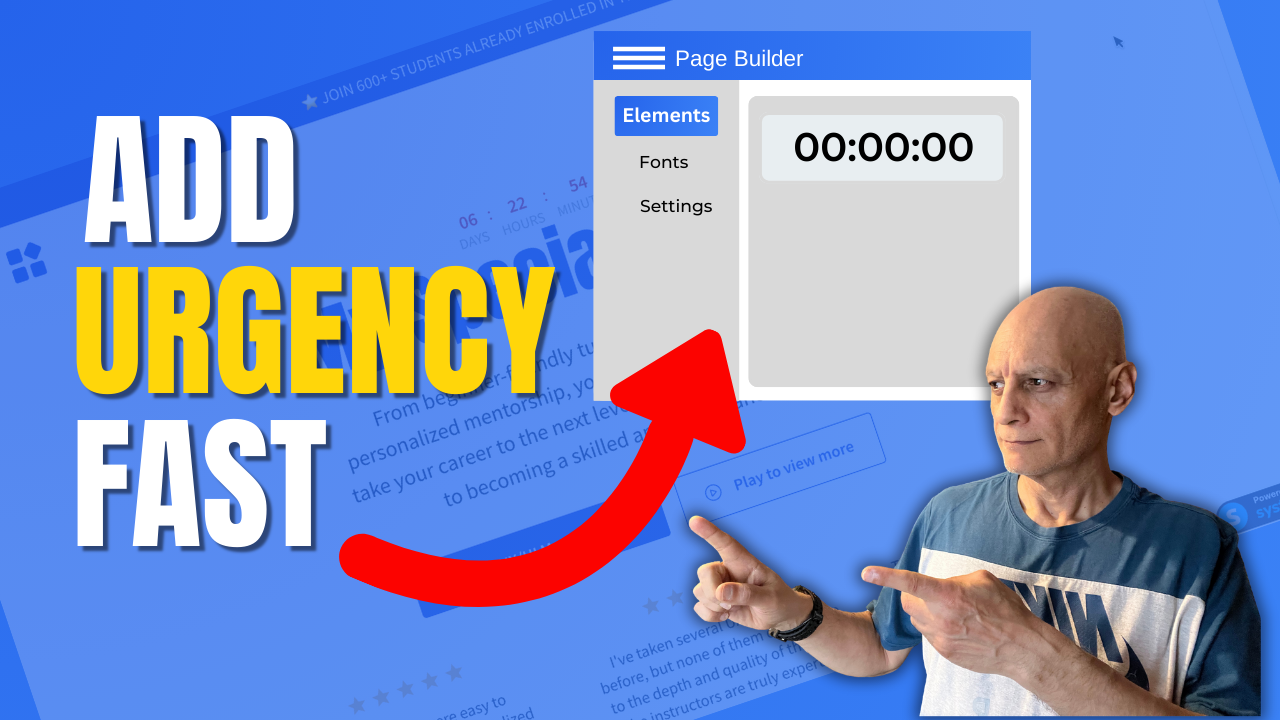
This step-by-step tutorial covers using the built-in Countdown element — whether you need a fixed date/time, a delay timer, or a daily reset timer. Perfect for promos, limited-time offers, or evergreen funnels.
What you’ll learn:
 How to drag and drop the “Countdown” element in Systeme.io page builder
Configuring fixed date & time, delay countdown, or daily countdown types
What happens when the timer expires (redirect or nothing)
Best use cases for each timer type
Free resource
 Beginner Funnel Checklist / Freebie:
 https://www.pagebuilderacademy.com/starter
Get a FREE Systeme.io account below:
https://www.pagebuilderacademy.com/systeme
See my full Systeme.io review + bonuses:
https://www.pagebuilderacademy.com/2r8b
Timestamps:
0:00 – Intro
0:33 – Navigating to Sales Funnels
0:49 – Select Required Funnel
1:03 – Go into Page Editor
1:23 – Add and place the countdown timer
1:41 – Configuring the countdown timer
2:04 – Fixed Date & Time
2:42 – Delay Timer option
3:09 – Daily Timer
3:39 – Saving and previewing the timer
4:00 – Configuring further options for the timer
4:50 – Outro
#systemeio #systemeiotutorial #pagebuilder #funnelbuilder #onlinemarketingtips #emailmarketing #PageBuilderAcademy #countdowntimer
========================
QUESTIONS? CONTACT ME!
========================
EMAIL: zaf@pagebuilderacademey.com
===========
FOLLOW ME
===========
 YOUTUBE SUBSCRIBE – @PageBuilderAcademy
============
DISCLAIMER
============
Some of the links in this description may be affiliate links, which means I receive a small commission at NO ADDITIONAL cost to you if you decide to purchase something.
How to drag and drop the “Countdown” element in Systeme.io page builder Configuring fixed date & time, delay countdown, or daily countdown types What happens when the timer expires (redirect or nothing) Best use cases for each timer type
Free resource Beginner Funnel Checklist / Freebie:https://www.pagebuilderacademy.com/starterGet a FREE Systeme.io account below:
https://www.pagebuilderacademy.com/systemeSee my full Systeme.io review + bonuses:
https://www.pagebuilderacademy.com/2r8bTimestamps:
0:00 – Intro
0:33 – Navigating to Sales Funnels
0:49 – Select Required Funnel
1:03 – Go into Page Editor
1:23 – Add and place the countdown timer
1:41 – Configuring the countdown timer
2:04 – Fixed Date & Time
2:42 – Delay Timer option
3:09 – Daily Timer
3:39 – Saving and previewing the timer
4:00 – Configuring further options for the timer
4:50 – Outro
#systemeio #systemeiotutorial #pagebuilder #funnelbuilder #onlinemarketingtips #emailmarketing #PageBuilderAcademy #countdowntimer
========================
QUESTIONS? CONTACT ME!
========================
EMAIL: zaf@pagebuilderacademey.com
===========
FOLLOW ME
===========
YOUTUBE SUBSCRIBE – @PageBuilderAcademy ============
DISCLAIMER
============
Some of the links in this description may be affiliate links, which means I receive a small commission at NO ADDITIONAL cost to you if you decide to purchase something.
Leave a Reply