Tag: systeme io page builder

  • How to Add a Video to a Page in Systeme.io

    How to Add a Video to a Page in Systeme.io

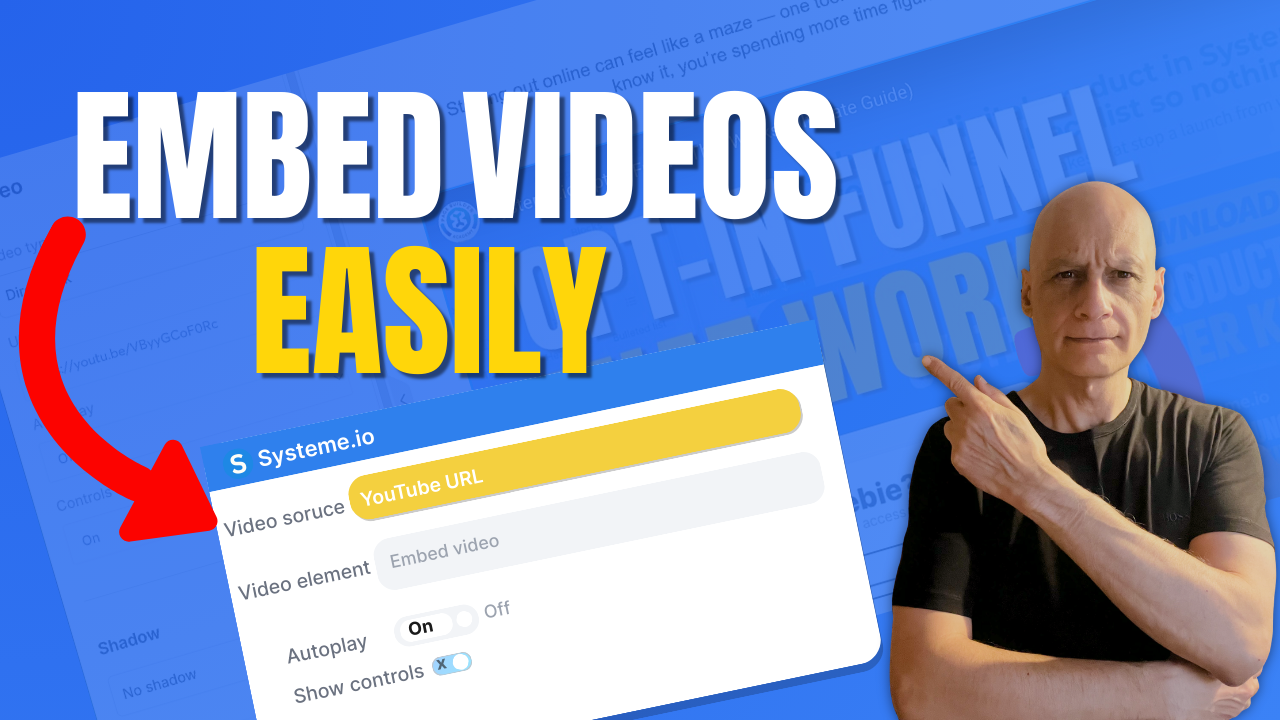
    Want to add a video to your page in Systeme.io but not sure where to start?

    In this beginner-friendly tutorial, I’ll show you exactly how to add a video to any Systeme.io page step by step. Whether you’re embedding a YouTube video, Vimeo video, or hosted content, this method works fast and requires no coding.
    You’ll learn:

    • Where to find the video element in Systeme.io
    • How to embed a video using a simple link
    • How to customise video settings for better page design

    This is perfect for landing pages, funnels, and sales pages built with Systeme.io.

    👉 Watch till the end to make sure your video displays correctly on all devices.

    ✅ Free resource
    📌 Beginner Funnel Checklist / Freebie:
    🔗https://www.pagebuilderacademy.com/starter

    Get a FREE Systeme.io account below:
    🔗https://www.pagebuilderacademy.com/systeme

    See my full Systeme.io review + bonuses:
    🔗https://www.pagebuilderacademy.com/2r8b

    ⏱️ Video Timestamps — How to Add a Video to a Page in Systeme.io

    0:00 Add Videos to Pages (Intro)
    0:17 New Sites Menu Explained
    0:32 Open the Page Editor
    0:59 Method 1 — Add Video Using Link
    1:41 Method 2 — Custom Embed Option
    2:58 Method 3 — Upload Your Own Video
    4:09 Video Settings (Autoplay, Controls, Thumbnail)
    4:40 Where You Can Use Videos
    4:54 Quick Recap — 3 Methods
    4:59 Free Systeme.io Starter Kit

    #systemeio #systemeiotutorial #systemeiobeginner #pagebuilderacademy
    #addvideotopage #videopagetutorial #landingpagevideo #videofunnel
    #buildfunnels #landingpagetutorial #digitalmarketingforbeginners
    #onlinemarketingtools #makemoneyonlinebeginners

    ========================
    QUESTIONS? CONTACT ME!
    ========================

    EMAIL: zaf@pagebuilderacademy.com

    ===========
    FOLLOW ME
    ===========

    ▶ YOUTUBE SUBSCRIBE – @PageBuilderAcademy

    ============
    DISCLAIMER
    ============
    Some of the links in this description may be affiliate links, which means I receive a small commission at NO ADDITIONAL cost to you if you decide to purchase something.
  • How to add a countdown timer in Systeme.io

    How to add a countdown timer in Systeme.io

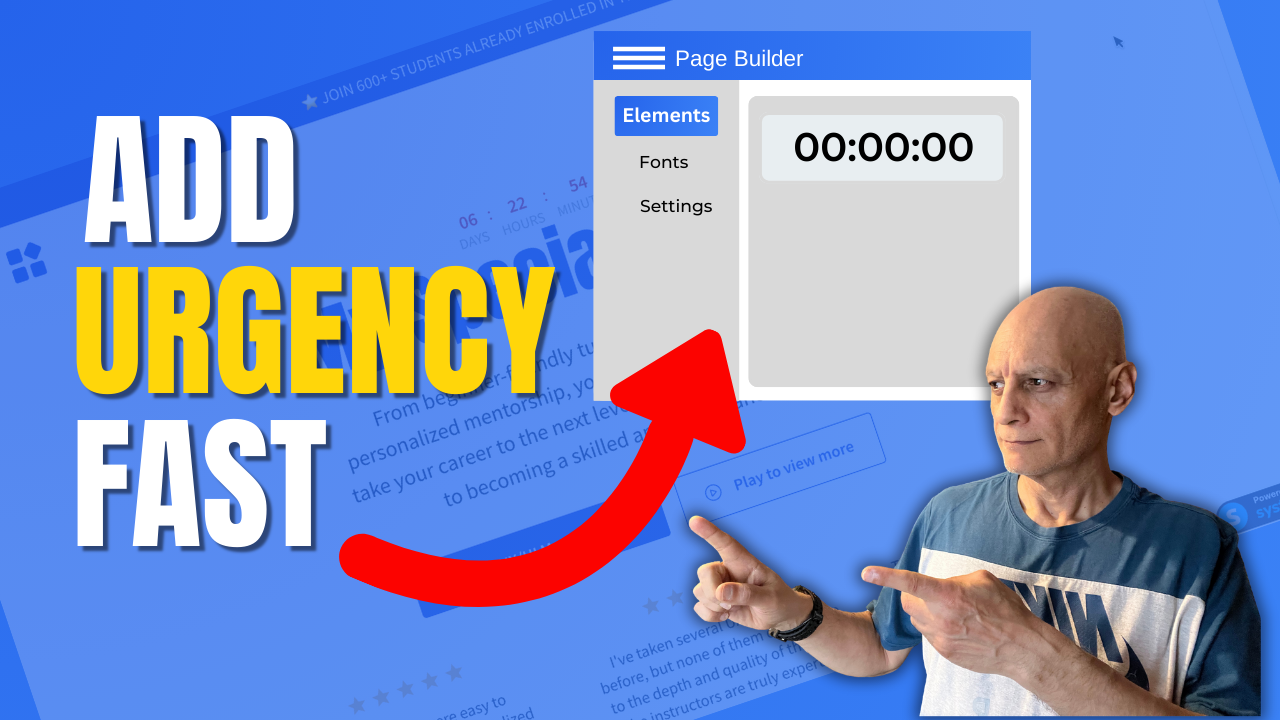
    This step-by-step tutorial covers using the built-in Countdown element — whether you need a fixed date/time, a delay timer, or a daily reset timer. Perfect for promos, limited-time offers, or evergreen funnels.
    What you’ll learn:

    ✅ How to drag and drop the “Countdown” element in Systeme.io page builder
    ✅ Configuring fixed date & time, delay countdown, or daily countdown types
    ✅ What happens when the timer expires (redirect or nothing)
    Best use cases for each timer type

    ✅ Free resource
    📌 Beginner Funnel Checklist / Freebie:
    🔗https://www.pagebuilderacademy.com/starter

    Get a FREE Systeme.io account below:
    🔗https://www.pagebuilderacademy.com/systeme

    See my full Systeme.io review + bonuses:
    🔗https://www.pagebuilderacademy.com/2r8b

    Timestamps:

    0:00 – Intro
    0:33 – Navigating to Sales Funnels
    0:49 – Select Required Funnel
    1:03 – Go into Page Editor
    1:23 – Add and place the countdown timer
    1:41 – Configuring the countdown timer
    2:04 – Fixed Date & Time
    2:42 – Delay Timer option
    3:09 – Daily Timer
    3:39 – Saving and previewing the timer
    4:00 – Configuring further options for the timer
    4:50 – Outro

    #systemeio #systemeiotutorial #pagebuilder #funnelbuilder #onlinemarketingtips #emailmarketing #PageBuilderAcademy #countdowntimer

    ========================
    QUESTIONS? CONTACT ME!
    ========================

    EMAIL: zaf@pagebuilderacademey.com

    ===========
    FOLLOW ME
    ===========

    ▶ YOUTUBE SUBSCRIBE – @PageBuilderAcademy

    ============
    DISCLAIMER
    ============
    Some of the links in this description may be affiliate links, which means I receive a small commission at NO ADDITIONAL cost to you if you decide to purchase something.
  • Change Your Button Hover Colour Fast In Systeme.io

    Change Your Button Hover Colour Fast In Systeme.io

    Want your Systeme.io buttons to stand out and look more professional?

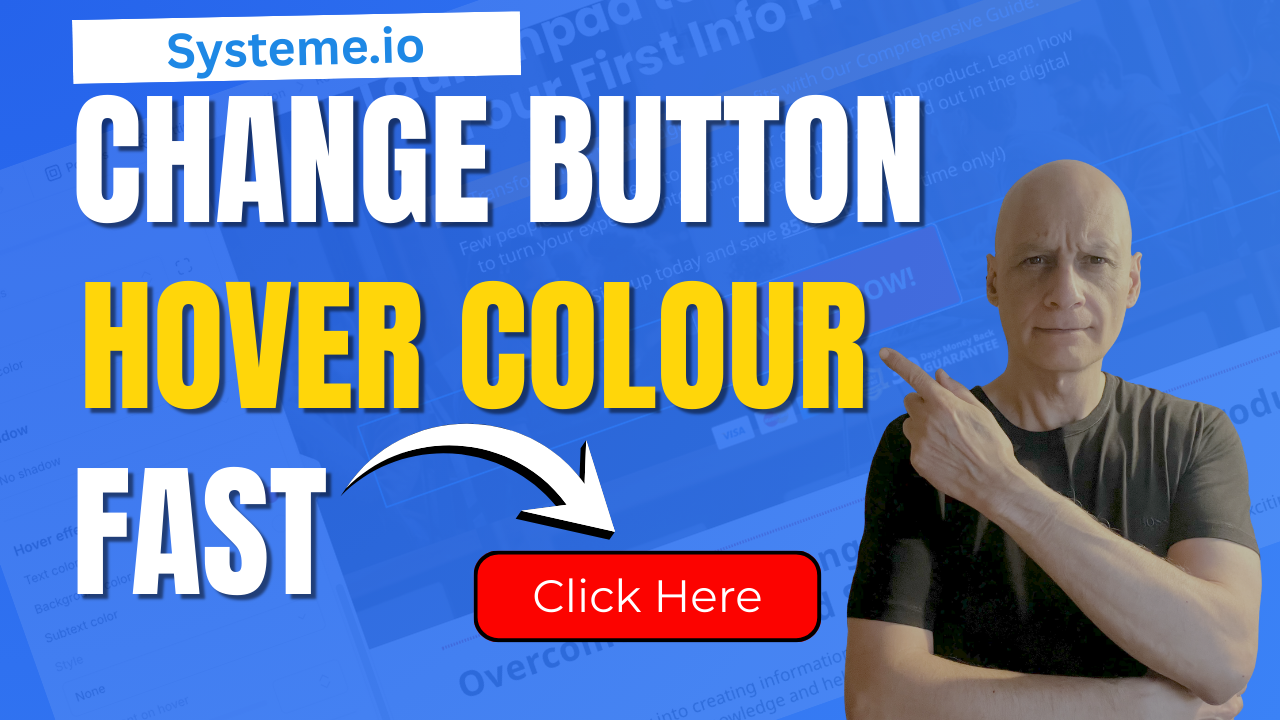
    In this beginner-friendly tutorial, I’ll show you exactly how to change the hover colour on any button inside Systeme.io. It’s a tiny design tweak that makes a huge difference in how your pages feel and how confidently people click your calls-to-action.
    You’ll learn:
    ✔ Where to find the button hover colour settings
    ✔ How to customise the hover background and text colour
    ✔ How to preview your changes instantly
    ✔ Tips to make your buttons clearer, cleaner, and more clickable

    Perfect for beginners, funnel builders, and anyone who wants their Systeme.io pages to look more polished without touching code.

    If this helps, don’t forget to like and subscribe for more bite-sized Systeme.io tutorials.

    Download The Free Starter Kit: A step-by-step checklist and a ready-made landing page template (for Systeme.io)

    🔗https://www.pagebuilderacademy.com/starter

    💡 Grab yourself a free Systeme.io account: An all-in-one platform, create emails, funnels and more!

    🔗https://www.pagebuilderacademy.com/systeme


    Timestamps:

    0:00 – Intro
    0:37 – Navigating to your page
    1:12 – Go to page editor
    1:23 – Go into Page Editor
    1:19 – Select the required button(s)
    2:04 – Adding hover effect
    2:54 – Adding text and button hover effect
    4:31 – Adding text and button hover effect to the second button
    5:28 – Save and preview
    6:14 – Outro

    #systemeio #systemeiotutorial #pagebuilder #funnelbuilder #onlinemarketingtips #emailmarketing #PageBuilderAcademy

    ========================
    QUESTIONS? CONTACT ME!
    ========================

    EMAIL: zaf@pagebuilderacademey.com

    ===========
    FOLLOW ME
    ===========

    ▶ YOUTUBE SUBSCRIBE – @Pagebuilderacademy

    ============
    DISCLAIMER
    ============

    Some of the links in this description may be affiliate links, which means I receive a small commission at NO ADDITIONAL cost to you if you decide to purchase something.

    These are my opinions and do not represent the views of the companies that create these products.

    My opinions are based on my personal experience and research. I never recommend poor-quality products or create false reviews to generate sales.

    I intend to explain products so you can make an informed decision on which ones suit your needs best.

    Any forward-looking statements in this video are intended to express my opinions. They are opinions only and should not be relied upon as fact.

    Success in any endeavour is based on many factors, individual to you. I do not know your educational background, your skills, your prior experience, or the time you can and will devote to the endeavour.
  • Add Downloadable PDFs to Your Systeme.io Pages Fast & Easy

    Add Downloadable PDFs to Your Systeme.io Pages Fast & Easy

    Want to add a downloadable PDF to your Systeme.io funnel or page?

    In this quick step-by-step tutorial, you’ll learn two easy ways to upload your PDF and create a download link or button — perfect for sharing checklists, lead magnets, or ebooks with your subscribers.
    By the end of this video, you’ll know how to:

    ✅ Upload your PDF inside Systeme.io
    ✅ Add a Download File button
    ✅ Create a clickable text link for your PDF
    ✅ Make your freebie open in a new tab automatically

    This method is perfect for thank-you pages, funnels, or freebie downloads — all using the free Systeme.io plan!

    Download The Free Starter Kit: A step-by-step checklist and a ready-made landing page template (for Systeme.io)

    🔗https://optin.pagebuilderacademy.com

    💡 Grab yourself a free Systeme.io account: An all-in-one platform, create emails, funnels and more!

    🔗https://www.pagebuilderacademy.com/systeme

    Timestamps:
    0:00 – Intro
    0:38 – Navigating to Sales Funnels
    0:45 – Select Required Funnel
    0:54 – Go into Page Editor
    1:21 – Adding a button element
    1:51 – Edit button action
    2:05 – Uploading your PDF
    2:53 – Editing the button
    4:11 – Saving and previewing, and testing the PDF
    4:44 – Adding a text element for your PDF link
    5:18 – Formatting the text element.
    5:28 – Linking the text to your PDF
    6:17 – Saving and testing the link
    6:45 – Checking in mobile view
    7:11 – Free resource mentioned

    #systemeio #systemeiotutorial #pagebuilder #funnelbuilder #onlinemarketingtips

    ========================
    QUESTIONS? CONTACT ME!
    ========================

    EMAIL: zaf@pagebuilderacademey.com

    ===========
    FOLLOW ME
    ===========

    ▶ YOUTUBE SUBSCRIBE – @PageBuilderAcademy
    ============
    DISCLAIMER
    ============

    Some of the links in this description may be affiliate links, which means I receive a small commission at NO ADDITIONAL cost to you if you decide to purchase something.

    These are my opinions and do not represent the views of the companies that create these products.

    My opinions are based on my personal experience and research. I never recommend poor-quality products or create false reviews to generate sales.

    I intend to explain products so you can make an informed decision on which ones suit your needs best.

    Any forward-looking statements in this video are intended to express my opinions. They are opinions only and should not be relied upon as fact.

    Success in any endeavour is based on many factors, individual to you. I do not know your educational background, your skills, your prior experience, or the time you can and will devote to the endeavour.