Tag: systeme io funnel tips

  • Most Beginners Miss This Systeme.io Sales Trick

    Most Beginners Miss This Systeme.io Sales Trick

    Want to increase your funnel sales without needing more traffic?

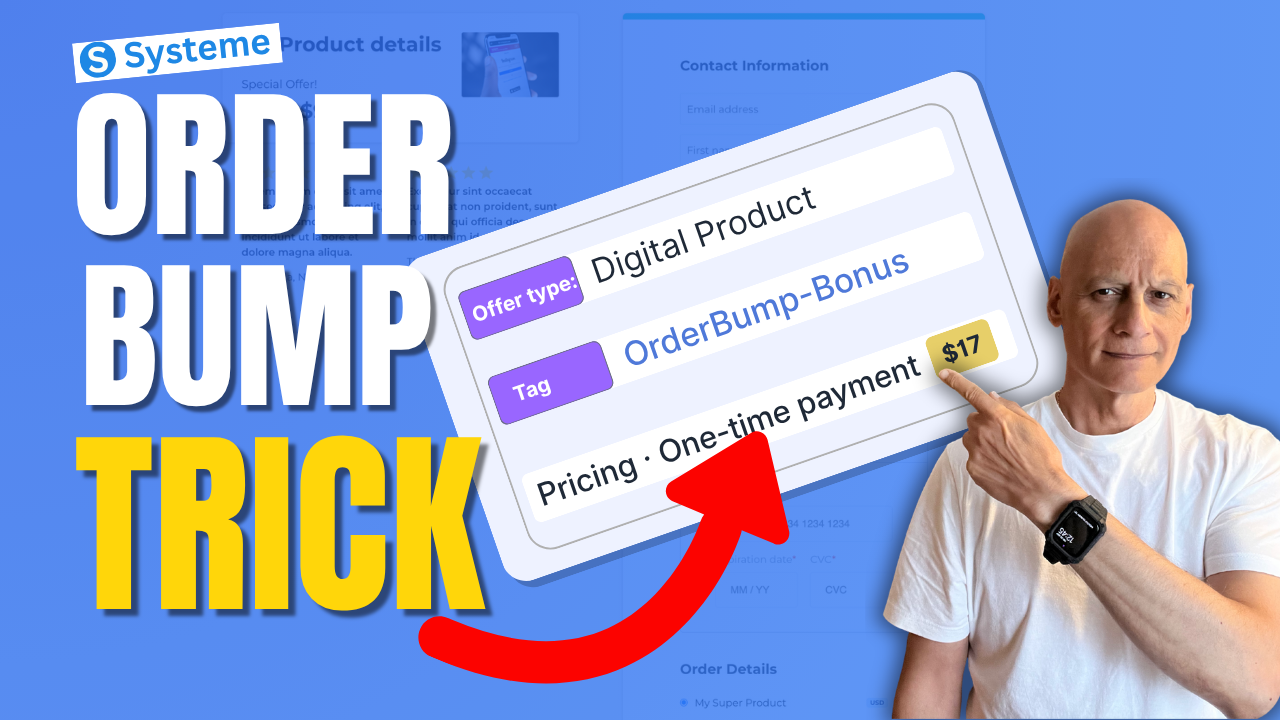
    In this beginner-friendly tutorial, I’ll show you how to create an order bump in Systeme.io step by step. Order bumps allow you to add a small additional offer directly on your checkout page so customers can add it to their purchase with a single click.

    Want to increase your funnel sales without needing more traffic?


    In this beginner-friendly tutorial, I’ll show you how to create an order bump in Systeme.io step by step. Order bumps allow you to add a small additional offer directly on your checkout page so customers can add it to their purchase with a single click.


    In this video you’ll learn:


    • How to add an order bump to your Systeme.io checkout page

    • How to connect the required resource (using tags)

    • How to create the pricing plan for your bump offer

    • How to display the order bump inside the page builder

    • Tips for creating high-converting bump offers


    Order bumps are one of the easiest ways to increase your funnel revenue without needing more traffic or ads.

    Next: Systeme.io Tags: The Automation Trick Most Miss


    ✅ Free resource
    📌 Beginner Funnel Checklist / Freebie:
    🔗https://www.pagebuilderacademy.com/starter

    Get a FREE Systeme.io account below:
    🔗https://www.pagebuilderacademy.com/systeme

    See my full Systeme.io review + bonuses:
    🔗https://www.pagebuilderacademy.com/2r8b

    #systemeio #systemeiotutorial #funnelbuilding #emailmarketingtips #onlinebusiness #pagebuilderacademy #orderbump #salesfunnel  #digitalproducts #onlinebusiness #funneltips


    ⏱️ Timestamps

    0:00 Increase Sales Instantly

    0:08 What Is an Order Bump

    0:24 Open Your Funnel

    0:42 Go to Sales Funnels

    0:52 Open Order Form Settings

    1:00 Choose Product Type

    1:17 Create Digital Product

    1:33 Add Resource (Tag)

    2:03 Why Use Tags

    2:20 Create Pricing Plan

    2:42 Choose Payment Type

    3:19 Set Price ($27)

    3:36 Save Settings (Important)

    3:53 Open Page Builder

    4:02 Add Order Bump Element

    4:31 How Order Bump Works

    4:47 Edit Offer Text

    5:36 Order Bump Ideas

    5:55 Preview Order Bump

    6:17 Quick Recap

    6:31 Free Resource


    ========================

    QUESTIONS? CONTACT ME!

    ========================


    EMAIL: zaf@pagebuilderacademy.com


    ===========

    FOLLOW ME

    ===========


    ▶ YOUTUBE SUBSCRIBE – @PageBuilderAcademy


    ============

    DISCLAIMER

    ============

    Some of the links in this description may be affiliate links, which means I receive a small commission at NO ADDITIONAL cost to you if you decide to purchase something.
  • Add a Countdown Timer in Systeme.io (Fast & Easy)

    Add a Countdown Timer in Systeme.io (Fast & Easy)

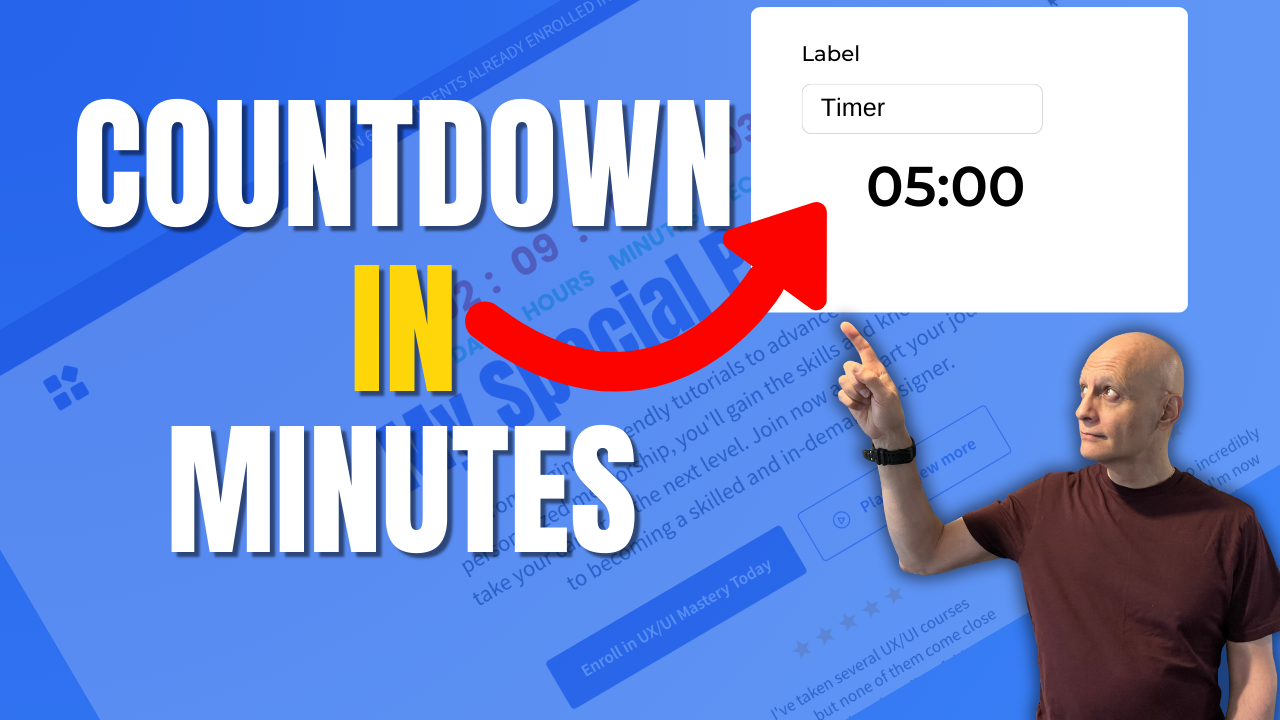
    In this quick Systeme.io tutorial, you’ll learn how to add a countdown timer to any funnel or landing page to boost urgency and increase conversions.

    I’ll walk you step-by-step through the three Systeme.io countdown modes — fixed date, delay timer, and daily reset — and show you when to use each one for maximum results.

    Whether you’re running a limited-time promo, creating evergreen scarcity, or highlighting a daily offer, countdown timers can dramatically improve your sales funnel performance. And the best part? Systeme.io makes it incredibly easy, even if you’re a complete beginner.

    🎯 What You’ll Learn:

    • How to add the Countdown element inside the Page Builder
    • Fixed Time & Date countdown setup
    • Delay countdown for evergreen funnels
    • Daily countdown for recurring offers
    • What happens when the timer expires
    • Best practices for using timers ethically and effectively

    ⏳ Perfect for:
    • Sales pages
    • Offer deadlines
    • Evergreen funnels
    • Launch sequences
    • High-converting landing pages

    If you found this helpful, be sure to LIKE the video and SUBSCRIBE for more Systeme.io tutorials every week.

    ✅ Free resource
    📌 Beginner Funnel Checklist / Freebie:
    🔗https://www.pagebuilderacademy.com/starter

    Get a FREE Systeme.io account below:
    🔗https://www.pagebuilderacademy.com/systeme

    See my full Systeme.io review + bonuses:
    🔗https://www.pagebuilderacademy.com/2r8b

    Timestamps:
    0:00 – Intro
    0:36 – Navigating to our page
    0:45 – Select Required Funnel
    1:01 – Go into the page editor
    1:31 – Adding the countdown timer
    1:54 – Selecting the countdown timer
    2:18 – What each countdown timer mode does
    5:07 – Configuring the countdown timer
    7:33 – Saving & previewing the countdown timer
    7:47 – Things to check.
    9:10 – Outro

    #systemeio #systemeiotutorial #pagebuilder #funnelbuilder #onlinemarketingtips #emailmarketing #pagebuilderacademy

    ========================
    QUESTIONS? CONTACT ME!
    ========================

    EMAIL: zaf@pagebuilderacademy.com

    ===========
    FOLLOW ME
    ===========

    ▶ YOUTUBE SUBSCRIBE – @PageBuilderAcademy

    ============
    DISCLAIMER
    ============
    Some of the links in this description may be affiliate links, which means I receive a small commission at NO ADDITIONAL cost to you if you decide to purchase something.

  • Rename Your Systeme io Funnel in Seconds No Tech Skills!

    Rename Your Systeme io Funnel in Seconds No Tech Skills!

    In this quick step-by-step tutorial, I’ll show you exactly how to rename a funnel inside your Systeme.io dashboard.
    Want to change the name of your funnel in Systeme.io, but not sure how? 🤔

    If you’re new to Systeme.io, don’t forget to grab my free guide + ready-made landing page template here 👇

    🔗https://optin.pagebuilderacademy.com

    In this quick step-by-step tutorial, I’ll show you exactly how to rename a funnel inside your Systeme.io dashboard.

    This is one of those small but important actions that make your account more organised — especially if you’re managing multiple funnels. By the end of this video, you’ll know the right way to update funnel names in just a few clicks.

    ✅ Perfect for beginners using Systeme.io
    ✅ Keeps your funnels clean and easy to manage
    ✅ Quick tip that most new users overlook

    🔔 Subscribe for more bite-sized Systeme.io tutorials that make online marketing simple!

    @PageBuilderAcademy

    💡 Grab yourself a free Systeme.io account: An all-in-one platform, create emails, funnels and more!

    🔗https://www.pagebuilderacademy.com/systeme

    Timestamps:

    0:00 – Intro
    0:31 – Navigating to Sales Funnels
    0:42 – Select Required Funnel
    0:58 – Select ‘Settings’ from the Menu
    1:16 – Rename Funnel
    2:03 – Outro

    #systemeio #systemeiotutorial #pagebuilder #funnelbuilder #onlinemarketingtips

    ========================
    QUESTIONS? CONTACT ME!
    ========================

    EMAIL: zaf@pagebuilderacademey.com

    ===========
    FOLLOW ME
    ===========

    ▶ YOUTUBE SUBSCRIBE – @PageBuilderAcademy

    ============
    DISCLAIMER
    ============

    Some of the links in this description may be affiliate links, which means I receive a small commission at NO ADDITIONAL cost to you if you decide to purchase something.

    These are my opinions and do not represent the views of the companies that create these products.

    My opinions are based on my personal experience and research. I never recommend poor-quality products or create false reviews to generate sales.

    I intend to explain products so you can make an informed decision on which ones suit your needs best.

    Any forward-looking statements in this video are intended to express my opinions. They are opinions only and should not be relied upon as fact.

    Success in any endeavour is based on many factors, individual to you. I do not know your educational background, your skills, your prior experience, or the time you can and will devote to the endeavour.Enter your text here…